Do You Need a Physical Panic Button, or Is a Lone Worker App Enough?
Last updated: 3 November 2026
Short answer
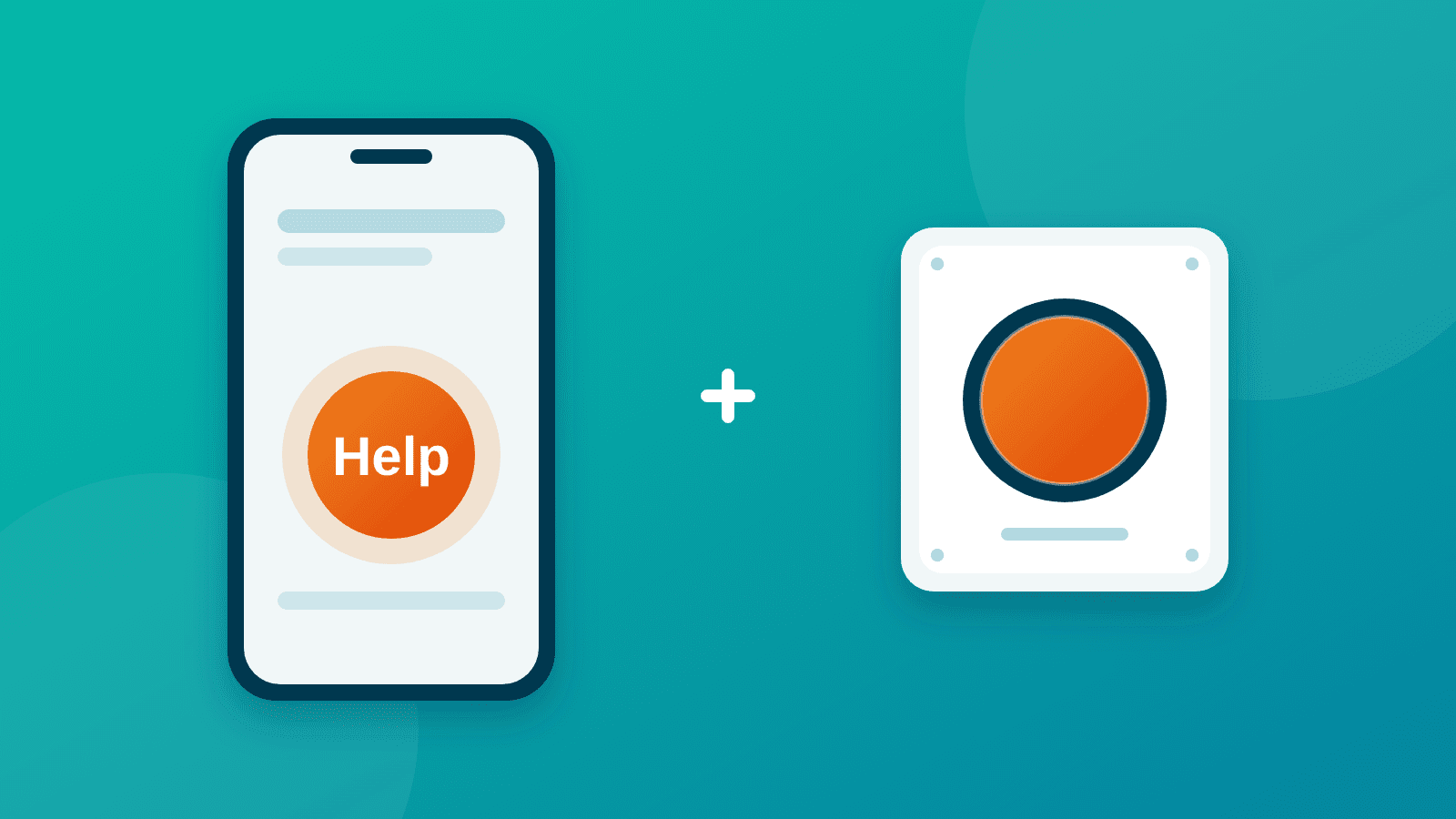
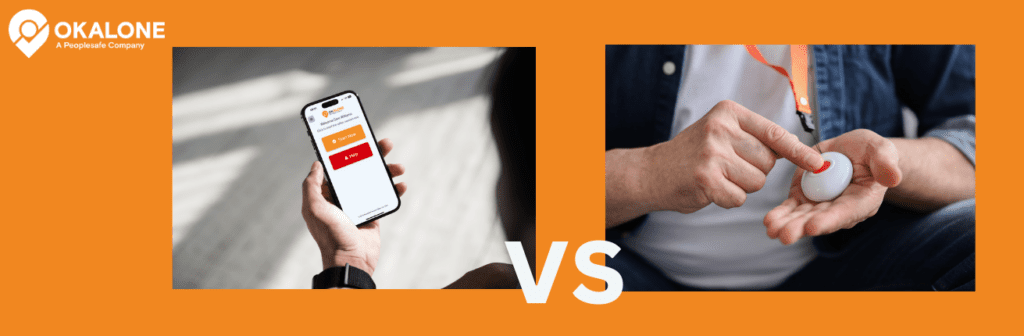
Physical panic button vs lone worker app: for most lone workers, an app is enough: it turns a phone they already carry into a panic button, with no hardware to buy. A dedicated device is worth adding for workers in areas with no signal or in hazardous environments, and a stationary button is worth keeping where a law, a customer or a fixed workstation calls for one. For many organizations the safest answer is a hybrid: app first, with physical buttons only where the risk needs them.
What does "physical panic button" mean?
The question can mean two different things, so this article answers both.
- A personal device: a pendant, fob or dedicated safety device that a worker carries or wears. This is the question for people who move between sites or work in the field.
- A stationary button: a wall-mounted, under-desk or other fixed alarm at one location, such as a reception desk, a cash register or a hotel hallway. This is the question for staff who work in one place.
Part 1 answers the first, Part 2 answers the second, and the hybrid section shows how to combine them.
Key takeaways
- For workers who move around, an app is enough in most cases, because it makes a phone they already carry a panic button with no hardware to buy.
- Add a dedicated device where there is no mobile signal or the environment is hazardous, such as gas or intrinsically safe zones. Satellite devices can connect to the app for remote work.
- For fixed locations, the desktop app plus text message and phone-call alerts can replace a physical button in many cases. Keep a stationary button where a customer requires one.
- Choose by role: an app for most staff, and physical buttons only where the risk needs them.
Lone worker app vs personal device vs stationary button
| Factor | Lone worker app (such as OK Alone) | Personal safety device | Stationary panic button |
|---|---|---|---|
| Cost | No hardware cost. Runs on the phones staff already carry. | Hardware for each worker, plus charging and replacement. | Hardware and installation at each location. |
| Reliability | Low Signal Mode+ and text message or phone-call alerts help when data is unavailable. | Built for the job, with long battery life. Some models offer multi-network or satellite connectivity. | Always in the same place, but protects only that location. |
| Discreet activation | Several options: shake (Android), back tap (iPhone), power button SOS (Android), voice command or a home screen shortcut. | A dedicated button that is quick to press, including with gloves. | One press at a fixed point, often out of sight, such as under a desk. |
| No-signal areas | Text message and phone-call alerts work without mobile data. Pairs with satellite devices for remote work. | Some models offer satellite or multi-network connectivity. | Depends on how the button is connected. |
| Fixed locations | The desktop app turns a computer into a panic button for front-of-house staff. | Carried to wherever the worker goes. | Designed for this. |
| Monitoring | Alerts go to assigned monitors or the 24/7 Safety Monitoring Center, with live Global Positioning System (GPS) location. | Depends on the device and its service. | Depends on how the button is connected. |
| Best for | Most lone workers who move between sites. | Very remote, no-signal or hazardous work. | Fixed workstations such as reception desks and cash registers, and places where a customer requires one. |
Sources: OK Alone Help Options, Android Power Button SOS and Panic Buttons for Lone Workers.
Part 1: personal devices. Is an app enough?
For most lone workers, yes. A lone worker app puts a panic button on the phone they already carry, so there is no separate device to buy, charge or forget.
OK Alone gives workers several ways to raise a Help Alert, which goes to assigned monitors with the worker's live location:
- Help button: open the app during a shift, press Help and confirm. Organizations can switch on "Hold for Help", which needs a two-second hold to prevent accidental alerts.
- Shake for Help (Android): shaking the phone starts a short countdown that the worker can cancel. Workers can choose an audible or silent alert.
- Back tap (iPhone): a double or triple tap on the back of a compatible iPhone can be set up to send a Help Alert.
- Power button SOS (Android): pressing the power button several times sends a Help Alert even when the phone is locked or in a pocket.
- Voice command: once set up, a command such as "Hey Siri, Help" works hands-free. Test it before relying on it.
- Home screen shortcut (Android): a long press on the app icon reveals a Get Help shortcut.
These options cover the situations a physical button is usually bought for: a quick press, a discreet alert and a hands-free route.
When to add a dedicated device
An app depends on the phone's battery, signal and operating system, so a dedicated device is worth adding in two cases:
- No signal: text message and phone-call alerts keep working without mobile data, and for remote work OK Alone can connect to satellite devices.
- Hazardous environments: work involving gas detection or intrinsically safe equipment needs specialist devices that a smartphone cannot replace. See lone worker apps vs dedicated safety devices.
- A law may specify the device. Some places require employers to give certain workers a portable panic button. In Chicago and Illinois, hotels and casinos must equip employees who work alone in guest rooms and restrooms, and Chicago's rules require GPS location. Read OK Alone's page on Illinois and Chicago lone worker legislation and check the rules that apply to you.
OK Alone is software only and does not supply hardware.
Part 2: stationary buttons. Is an app enough?
Often yes, but fixed locations are where a physical button still has a case. Staff at a reception desk, a cash register or a hotel hallway work in one place, so the panic button needs to be in reach and obvious.
OK Alone covers fixed locations without extra hardware:
- Desktop app: a Windows and web app turns any computer into a panic button for front-of-house staff. The worker clicks Help and confirms, and desk or site notes in their profile help responders find them.
- Text message: a worker texts their Worker ID followed by HELP to the saved OK Alone number.
- Phone call: a worker calls the saved number from a mobile or landline, enters their Worker ID and selects option 0. This works without mobile data or the app.
When a physical stationary button still makes sense
Keep, or add, a stationary button in these cases:
- A customer or contract requires one. Some customers and insurers specify a fixed panic button at certain sites, so check your requirements.
- Staff need a one-press alarm with no screen. A button fixed under a desk or on a wall needs no phone, no login and no unlocking.
- Staff cannot rely on a phone or computer being to hand, charged and signed in.
If you are weighing a computer-based button against a wall-mounted one, see is a computer-based panic button more effective than a button mounted on the wall?
The hybrid model: choose by role
You do not have to choose one answer for everyone. Match the protection to the risk each role faces.
| Role | What usually works | Add a physical button when |
|---|---|---|
| Field, visiting and mobile staff | The app, with its Help button, discreet options and check-ins. | Work is hazardous (gas, intrinsically safe zones) or in areas with no signal. |
| Remote workers | The app in most cases, but can be paired with a satellite device. | Mobile coverage is absent for long periods. |
| Reception, retail and front-of-house staff | The desktop app, plus text message and phone-call alerts. | A customer or contract requires a button, or staff need a one-press alarm with no screen. |
| Office staff working alone or after hours | The app or the desktop app. | The building has a high risk of intruders or violence. |
Common questions
Can an app replace a physical panic button?
For most lone workers, yes. The app puts a Help button, discreet options and voice commands on a phone the worker already carries. A physical button is still worth having in no-signal areas, in environments where you need specialist equipment, and where a law or customer requires one.
Do we need both an app and a physical button?
Not for everyone. Use the app for most staff and add physical buttons only for the roles and locations where the risk needs them. This hybrid approach keeps cost down and keeps adoption high.
What if there is no mobile signal?
Text message and phone-call alerts work without mobile data. For remote work with no coverage at all, OK Alone can connect to satellite devices.
What happens when someone raises an alert?
A Help Alert goes to the assigned monitors or the 24/7 Safety Monitoring Center with the worker's live location. It does not go directly to the emergency services, so agree in advance who contacts them.
Next steps
To see how a Help button, check-ins and monitoring work for your team, book a demo or start a free trial of OK Alone. No credit card is needed.
Related resources:


Stacey Manclark
As an expert in lone worker content management, I possess an extensive knowledge base and experience in the area of lone working and safety monitoring. My expertise in this field encompasses a wide range of areas, including risk assessment, training, communication, and technology. I have a deep understanding of the unique risks associated with lone workers and have researched and written many projects and articles to educate people in how to mitigate these risks.
Throughout my time with OK Alone, I have kept up to date with technological developments, legislative changes and regulations that have been introduced to help organizations ensure the safety of their lone workers.
Book a Demo Today
Alternatively, get a free trial of the app
Want to try OK Alone? Click the button below and enter your details. It's free and no credit card is required.
