OK Alone Help Options
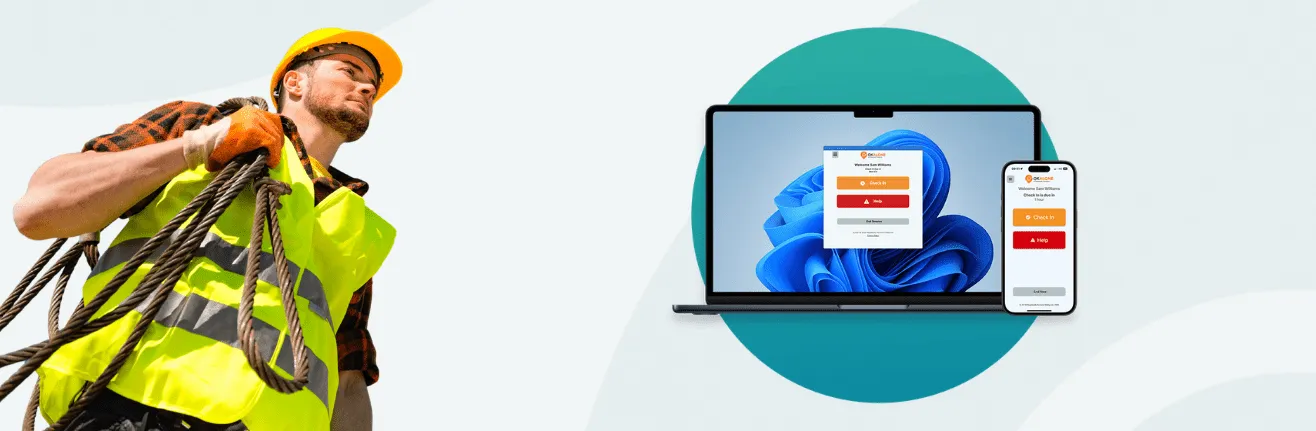
How to Request Help with OK Alone?
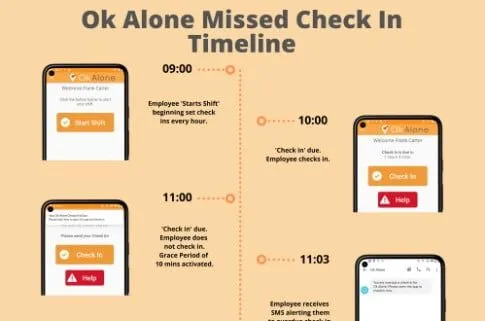
OK Alone can also raise an alert automatically when a worker misses a check-in, becomes unresponsive, or experiences a detected fall. This helps ensure support can be initiated even when the worker cannot ask for it themselves.

Choose the Safest Way to Raise an Alert
An emergency does not always give someone time to unlock their phone, open an app, or explain what is happening. That is why OK Alone provides several ways to request assistance.
Workers can choose the method that best suits the situation, whether they need a visible alarm, a silent alert, hands-free activation, or another way to connect when mobile data is unavailable.
Available options may depend on the worker’s device, operating system, app version and the features enabled for their organization.
Immediate Help from the OK Alone App
When a worker needs quick assistance, OK Alone provides simple in-app options to raise an alert. Workers can use the Help button or Hold for Help to notify their assigned monitors and share their location.
Panic/Help Button
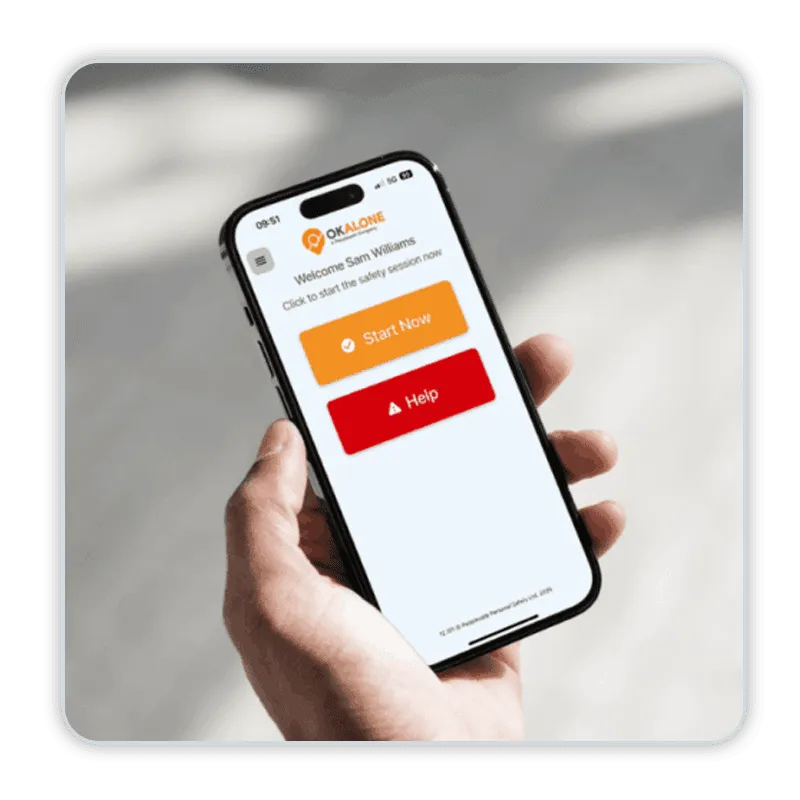
The Panic/Help Button is the most direct way to request immediate assistance through the OK Alone app.
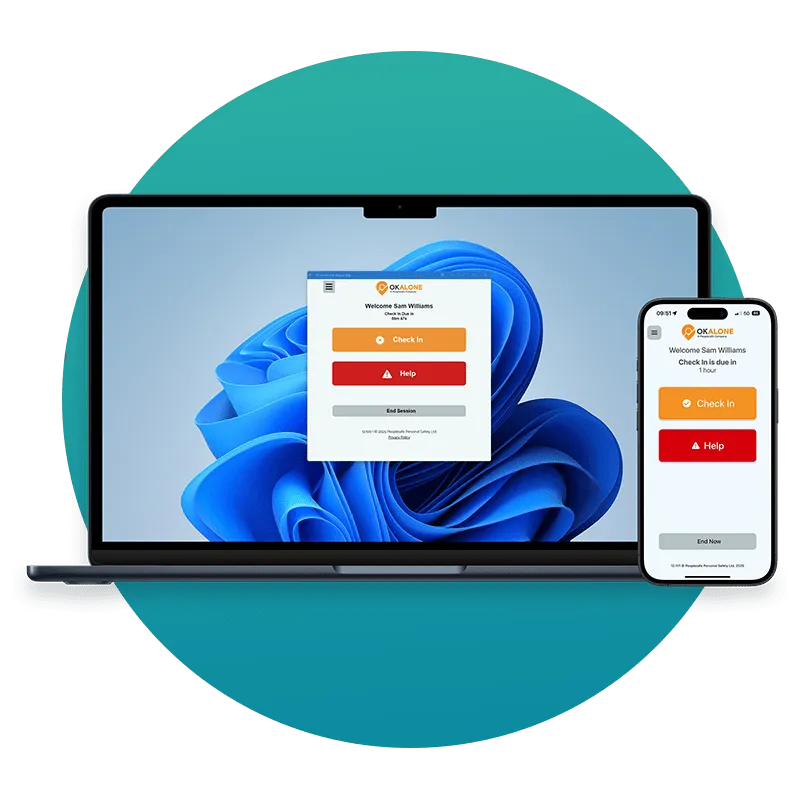
While on shift, the worker taps the red Help button and confirms the request. A Help Alert is then sent to their assigned monitors, together with their live GPS location.
This option is suitable when the worker can safely access their phone and needs support immediately.
How to Use the Panic/Help Button
1. Open the OK Alone app while your shift is active
2. Tap the red Help button
3. Confirm that you want to send the alert
4. Follow any instructions shown on your screen
Your monitor will receive the alert and begin the agreed response procedure.
Hold for Help
Hold for Help provides the same quick access to assistance while helping reduce accidental alerts.
When this option is enabled, the worker presses and holds the Help button for 2 seconds instead of tapping it once. The alert is then sent through the organization's normal monitoring and escalation process.
When to Use Hold for Help
Holding for Help may be useful for organizations that want to keep emergency assistance easy to access while reducing alerts caused by an accidental screen tap.
This is a configurable option and may need to be enabled for your organization.
Request Help Without Drawing Attention
Some situations may become more dangerous if another person realizes that an alert has been raised. OK Alone provides discreet options that allow workers to request assistance without visibly opening the app or making a phone call.
Once triggered, these methods send a Help Alert to the worker’s monitors with their location.

Shake for Help
Shake for Help allows an Android user to raise an alert by deliberately shaking their phone.
When the movement is detected, the phone starts a short countdown. The worker can cancel the request if it was triggered accidentally. If it is not cancelled, OK Alone sends a Help Alert to the worker’s monitors.
Workers can choose between an audible alarm and a discreet mode that sends the alert silently. Sensitivity can also be adjusted to suit the worker’s normal level of movement.
How to Set Up Shake for Help
1. Open the OK Alone menu
2. Select Shake for Help
3. Switch the feature on
4. Choose the required sensitivity
5. Select audible or discreet activation
6. Save the settings
Shake for Help should be tested during onboarding, so the worker understands how much movement is required.
Back Tap for iPhone
Workers using a compatible iPhone can configure a double or triple tap on the back of the device to trigger the OK Alone Help action.
This provides a discreet way to raise an alert without opening the app or using the screen, helping the worker avoid drawing attention during a threatening or sensitive situation.
How to Set Up Back Tap
1. Open the iPhone Settings
2. Select Accessibility
3. Choose Touch, followed by Back Tap
4. Select Double Tap or Triple Tap
5. Assign the OK Alone Help shortcut
The worker can tap the back of the phone using the selected action to raise a Help Alert.
Power Button SOS for Android
Power Button SOS allows an Android user to request help by pressing the phone’s power button several times in a configured sequence.
The worker does not need to unlock the phone or open the OK Alone app. Once activated, a Help Alert and the worker’s GPS location are sent to their monitors.
When to Use Power Button SOS
Power Button SOS is designed for situations where:
- The phone is locked.
- The screen cannot be accessed safely.
- Opening the app could draw attention.
- The worker needs to raise an alert quickly and discreetly.
The exact button sequence depends on the option selected during setup.
Android Home Screen Shortcut
Android users can also access OK Alone actions directly from the phone’s home screen.
Press and hold the OK Alone app icon to display available shortcuts, then select Get Help to raise an alert without navigating through the full app.
Hands-Free Help
Voice-activated help gives workers another way to raise an alert when using their phone may not be practical or safe. Siri or Google Assistant can be configured to help workers request assistance using a voice command.

Voice-Activated Help Requests
Workers can use Siri or Google Assistant to carry out OK Alone actions using their voice, including requesting help.
Voice activation is useful when someone cannot safely reach their phone, is wearing gloves, is working inside a vehicle, or needs to keep both hands focused on a task.
Using Voice Commands
Once the OK Alone voice shortcut has been configured, the worker can use the appropriate Siri or Google Assistant command to request help.
Example commands include:
- “Hey Siri, Help.”
- “OK Google, ask Work Alone for Help.”
Workers should test the command before relying on it during an active shift.
Requesting Help Without the Mobile App
Workers do not always need the OK Alone mobile app to request assistance. Help can also be raised from a desktop, by SMS, or through a phone call, providing additional options when mobile data or app access is unavailable.
Desktop Help Button
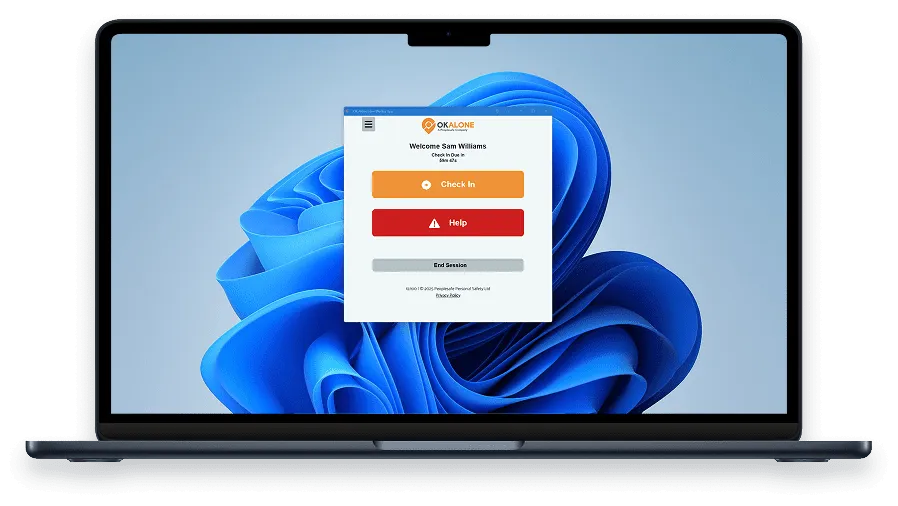
The OK Alone Windows and Web App turns a computer into a safety tool for employees working at a desk or fixed location.
A receptionist, concierge worker, control-room operator, retail employee or remote office worker can click Help and confirm the request. The alert is then sent to the organization's monitors or on-site response team.
The application can remain open or pinned to the taskbar, allowing the worker to access it quickly without interrupting their normal work.
How to Request Help from a Desktop
1. Open the OK Alone Windows or Web App.
2. Click Help.
3. Confirm the request on the following screen.
4. Keep the application open unless it is unsafe to do so.
The worker’s precise desk position, office location, or site information can be stored as notes within their profile to help responders locate them accurately inside a building.
Request Help by SMS
Workers can request help through their phone messaging application when they cannot use the app.
Send the worker’s ID number followed by the word HELP to the organization's saved OK Alone number. The worker’s monitor is notified in the same way as they would be following an app-based Help Alert.
SMS Format
Worker ID + HELP
Example: 12345 HELP
Organizations should ensure the correct regional OK Alone number is saved in every worker’s contact before deployment.
Request Help by Phone Call
A worker can also call the saved OK Alone number from a mobile phone or landline.
After calling, the worker enters their Worker ID and selects option 0 for Help. An alert is then sent to their monitors.
Phone-Call Steps
1. Call the OK Alone number saved by your organization.
2. Enter your Worker ID when prompted.
3. Select 0 for Help.
4. Follow any additional instructions provided.
This option can support workers who cannot access mobile data or the OK Alone app.
Automatic Alerts When a Worker Cannot Request Help
A worker may be unconscious, injured, trapped or otherwise unable to raise an alert manually. OK Alone’s automated safety features can identify specific warning signs and notify monitors without requiring the worker to request help themselves.

Missed Check-In Alerts
Workers can be scheduled to confirm their safety at regular intervals.
If a check-in is missed, OK Alone reminds the worker and applies the organization's configured grace period. If the worker still does not respond, an alert is sent to their monitors so they can check the worker’s welfare and follow the agreed escalation procedure.
High-Risk Check-Ins and Timed Activities
Shorter check-in intervals can be used when a worker enters a higher-risk situation. Timed Activities can also monitor a specific visit, task or period of isolated work.
A missed high-risk check-in or an activity that is not completed on time can trigger a faster alert and escalation process.
Man/Worker Down
Man/Worker Down monitors the movement of the worker’s smartphone during an active shift.
If the phone remains motionless for a set period of time, previously chosen by the worker, OK Alone asks them to confirm that they are safe. If there is no response, an automatic alert is sent to their monitors or emergency contacts.
This provides an additional layer of protection for workers who may have lost consciousness or are unable to reach the Help button.
Automatic Fall Detection
Fall Detection uses the phone sensors to assess movement patterns associated with a fall, including freefall, changes in orientation, and a subsequent lack of movement.
When a likely fall is detected, the worker receives an alarm and a short opportunity to confirm that they are safe. If the worker does not respond, OK Alone automatically sends a Fall Alert to the monitoring team or 24/7 Safety Monitoring Center.
What Happens After an Alert?
When a Help Alert or automated safety alert is raised, it is sent to the worker’s assigned monitors or the Safety Monitoring Center, depending on the organization’s setup.
The response team can receive information including:
- The worker’s name and contact details.
- The type of alert raised.
- The worker’s last known or live location.
- Assigned emergency contacts.
- The organization’s agreed action plan.
Help and Panic Alerts are treated as immediate requests for assistance. Missed check-ins and automated alerts follow the escalation procedure configured by the organization. All actions and responses can be recorded for review and reporting.

Every Alert Needs a Clear Response Plan
Before workers begin using OK Alone, organizations should confirm who receives alerts, how workers will be contacted and when incidents should be escalated to on-site teams or emergency services.
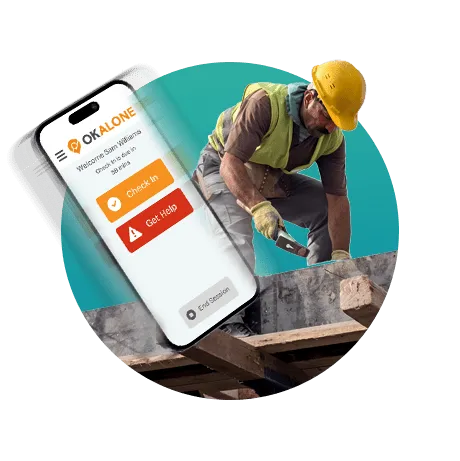
Choosing the Right Help Option
Different working environments and emergencies require different ways to request assistance. Understanding the available options helps workers choose the safest and most practical method for the situation.
| Situation | Recommended Option |
| The worker can access the app safely | Panic/Help Button or Hold for Help |
| The worker must avoid drawing attention | Shake for Help, Back Tap or Power Button SOS |
| The worker cannot touch the phone | Voice command |
| The worker is based at a computer | Desktop Help Button |
| The app or mobile data cannot be accessed | SMS or phone call |
| The worker is unconscious or unable to respond | Man/Worker Down or Fall Detection |
| The worker misses a scheduled safety confirmation | Missed Check-In Alert |
Workers should be shown each available method during training and encouraged to select the option that will keep them safest in the circumstances.
Frequently Asked Questions (FAQs)
Find answers to common questions about OK Alone Help Alerts, including feature availability, accidental alerts, low-signal situations, worker location and discreet activation methods.
Not necessarily. Availability depends on the worker’s device, operating system, app version, and the features enabled for the organization. Android and iPhone devices also support different discreet activation methods.
Several options provide a confirmation screen or short cancellation period. Workers should cancel the request immediately or mark themselves safe when prompted. If the alert has already been sent, they should respond to their monitor and confirm that assistance is no longer required.
Yes. Workers can request help through SMS or phone calls. OK Alone’s low-signal functionality can also direct workers to these alternatives when the app detects that mobile data or Wi-Fi is unavailable.
Location information is included when the worker’s device and account settings allow it. The monitor may receive a live or last known GPS position to help them locate the worker.
Workers should use whichever method is safest. A discreet alert may be more appropriate when drawing attention could escalate a threatening situation. An audible alert may help deter someone, attract nearby assistance or reassure the worker that the request has been activated.
Make Sure Every Worker Knows How to Get Help
A Help Alert is only effective when workers understand the options available to them. Include OK Alone help features in employee onboarding, test each enabled method and review your escalation procedure regularly.



Stacey Manclark
As an expert in lone worker content management, I possess an extensive knowledge base and experience in the area of lone working and safety monitoring. My expertise in this field encompasses a wide range of areas, including risk assessment, training, communication, and technology. I have a deep understanding of the unique risks associated with lone workers and have researched and written many projects and articles to educate people in how to mitigate these risks.
Throughout my time with OK Alone, I have kept up to date with technological developments, legislative changes and regulations that have been introduced to help organizations ensure the safety of their lone workers.
Book a Demo Today
Alternatively, get a free trial of the app
Want to try OK Alone? Click the button below and enter your details. It's free and no credit card is required.
